Web Chat
Web Chat is AI Butler’s flagship channel. It’s one of the two channels marked ready (the terminal REPL is the other) — the remaining 10 channels (Telegram, Slack, Discord, WhatsApp, Teams, Google Chat, LINE, IRC, webhook, Nostr) are in beta pending real-world validation. When you run ./aibutler run, you immediately get a production-quality web chat at http://localhost:3377 with no additional configuration.
This page is a full visual tour — every screenshot is live output from a running instance.
Zero config
Section titled “Zero config”./aibutler runThat’s the entire setup. Open http://localhost:3377 and you’re chatting. No API keys, no vault entries, no credentials, no OAuth flow, no external dependencies beyond the model provider you’re already using.
By default it binds to localhost on port 3377. To reach it from other devices on your LAN (phones, tablets, other laptops), set bind_address: 0.0.0.0 in config.yaml — see Configuration below.
The welcome screen — first impression
Section titled “The welcome screen — first impression”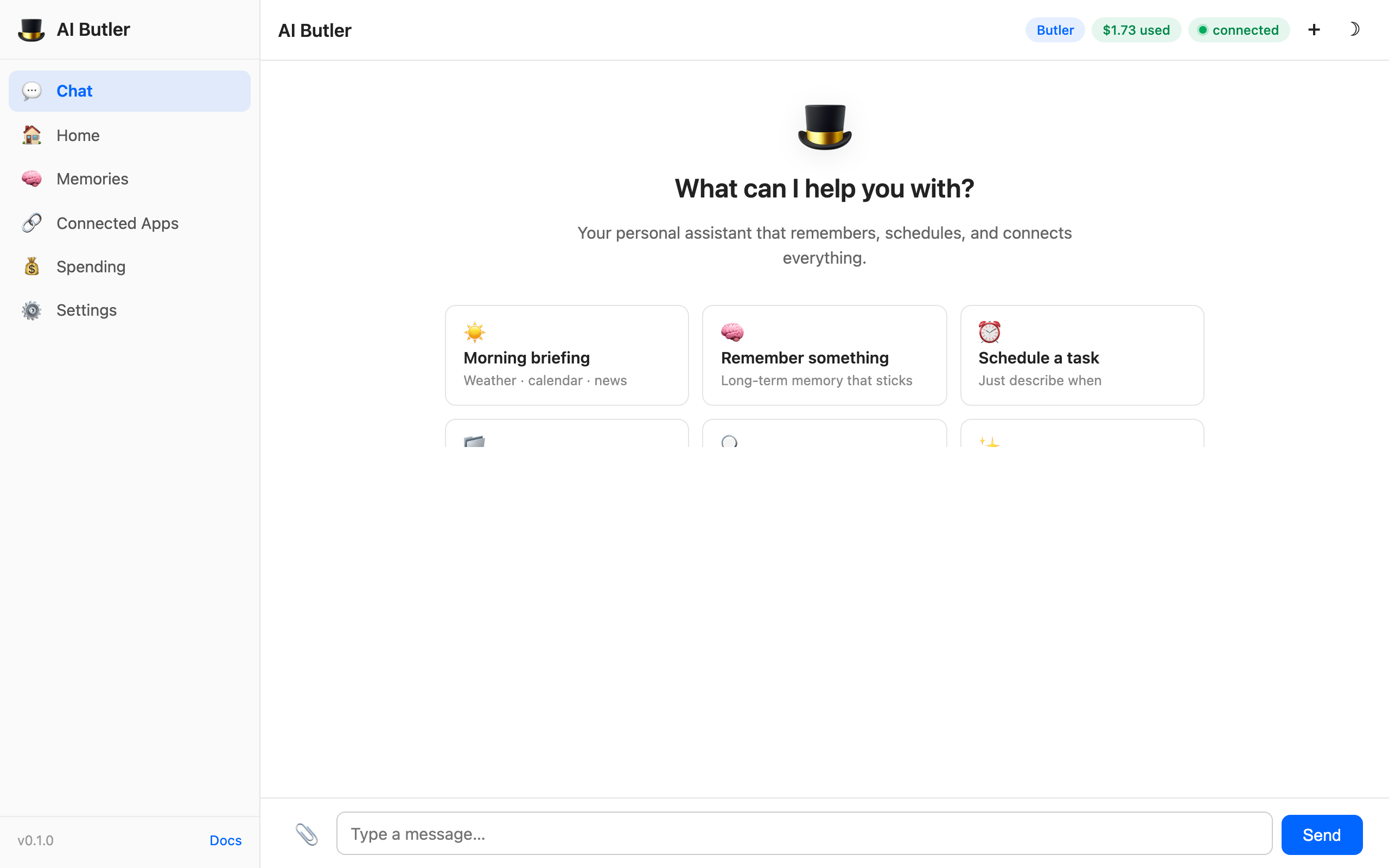
When you first open the web chat, you land on the welcome screen with 6 starter prompt cards. Click any one and it pre-fills the input — or just type your own. The starters cover the core capability areas (memory, scheduling, file exploration, self-introspection) so new users see the breadth immediately without having to read docs.
The header pills at the top right show live state:
- Butler (blue) — the active persona name
- $1.61 used (green) — cost spent this period, pulled live from
/api/dashboard/costs - connected (green) — WebSocket connection status (flips to connecting / offline as the connection state changes)
The 7-panel sidebar dashboard
Section titled “The 7-panel sidebar dashboard”The sidebar has seven panels. Click any one to switch views — the chat panel stays alive in the background so you never lose your conversation.
1. Chat (default)
Section titled “1. Chat (default)”Standard conversational interface with streaming token-by-token replies, file upload, voice upload, and natural-language prompting. Returns to the welcome screen when the conversation is empty; shows the message thread when you start chatting.
2. Home — at-a-glance dashboard
Section titled “2. Home — at-a-glance dashboard”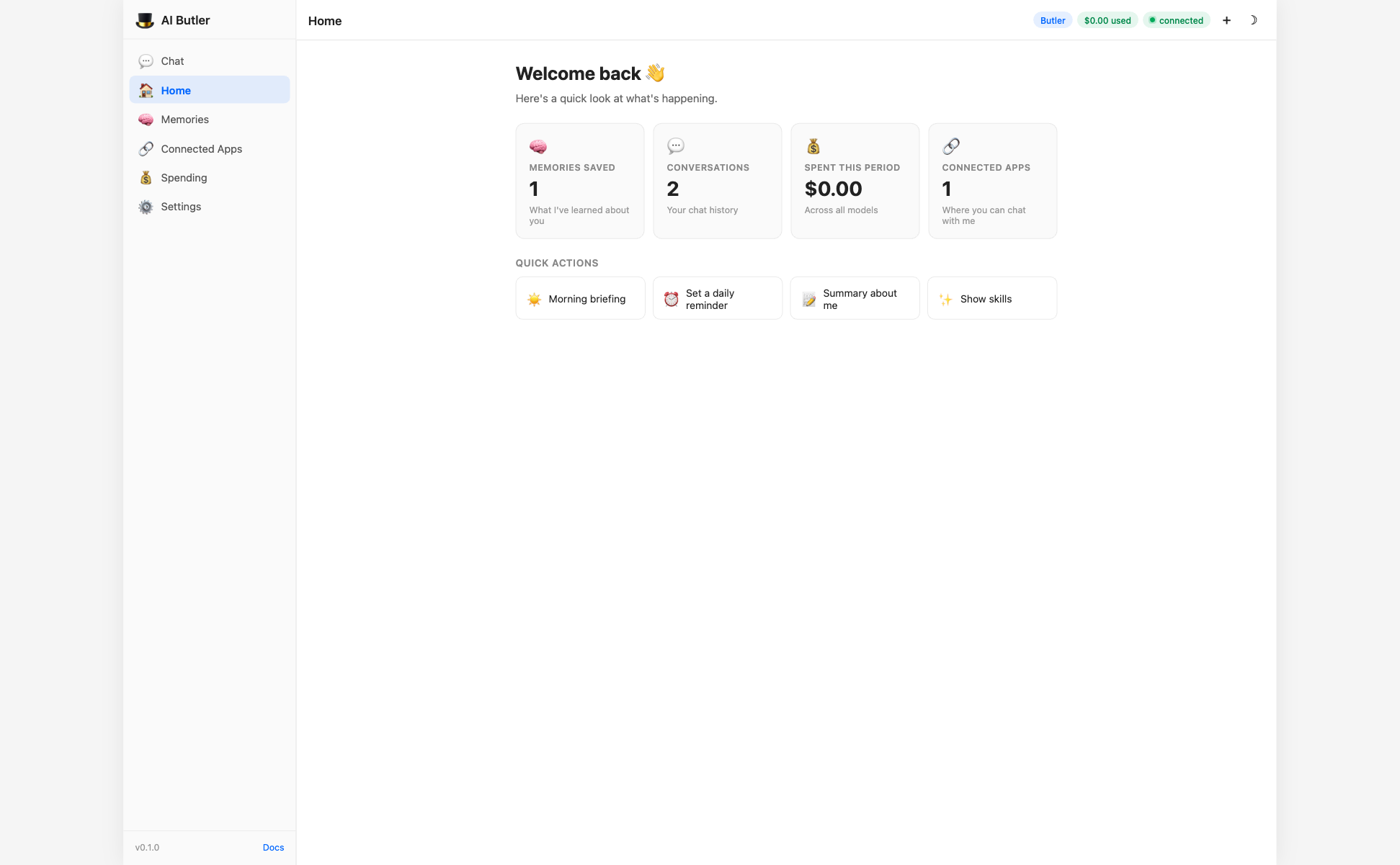
Four live tiles pulled from /api/dashboard/stats:
- Memories saved — total count of notes, people, and key facts in the knowledge graph
- Conversations — how many sessions you’ve had
- Spent this period — live USD cost from the model API
- Connected apps — how many messaging channels are active
Plus a Quick Actions row with six pre-written prompts that jump back to the Chat panel with the input pre-filled. Perfect for repeating common tasks (morning briefing, daily reminder setup, summary-about-me, etc.).
3. Memories — browse what Butler knows about you
Section titled “3. Memories — browse what Butler knows about you”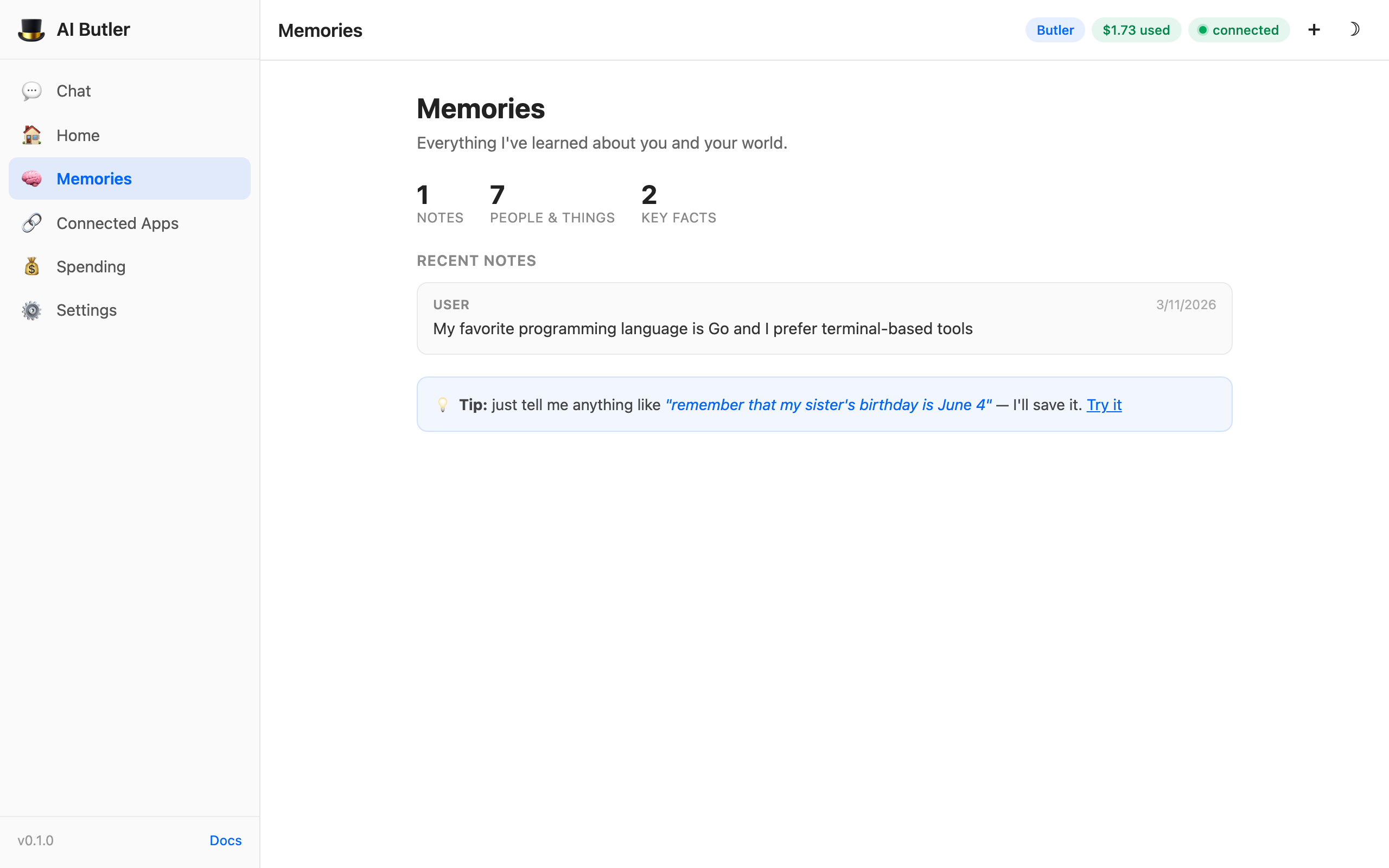
Shows the memory system’s contents directly:
- Mini-stats — notes, people & things, key facts
- Recent notes — cards with source label, timestamp, and content
- Tip hint — clickable “Try it” link that pre-fills a “remember this” prompt
This is the panel that makes the memory system tangible. Users can see exactly what the agent remembers about them and when it was learned. See Memory & Knowledge for the full architecture.
4. Connected Apps — which channels are active
Section titled “4. Connected Apps — which channels are active”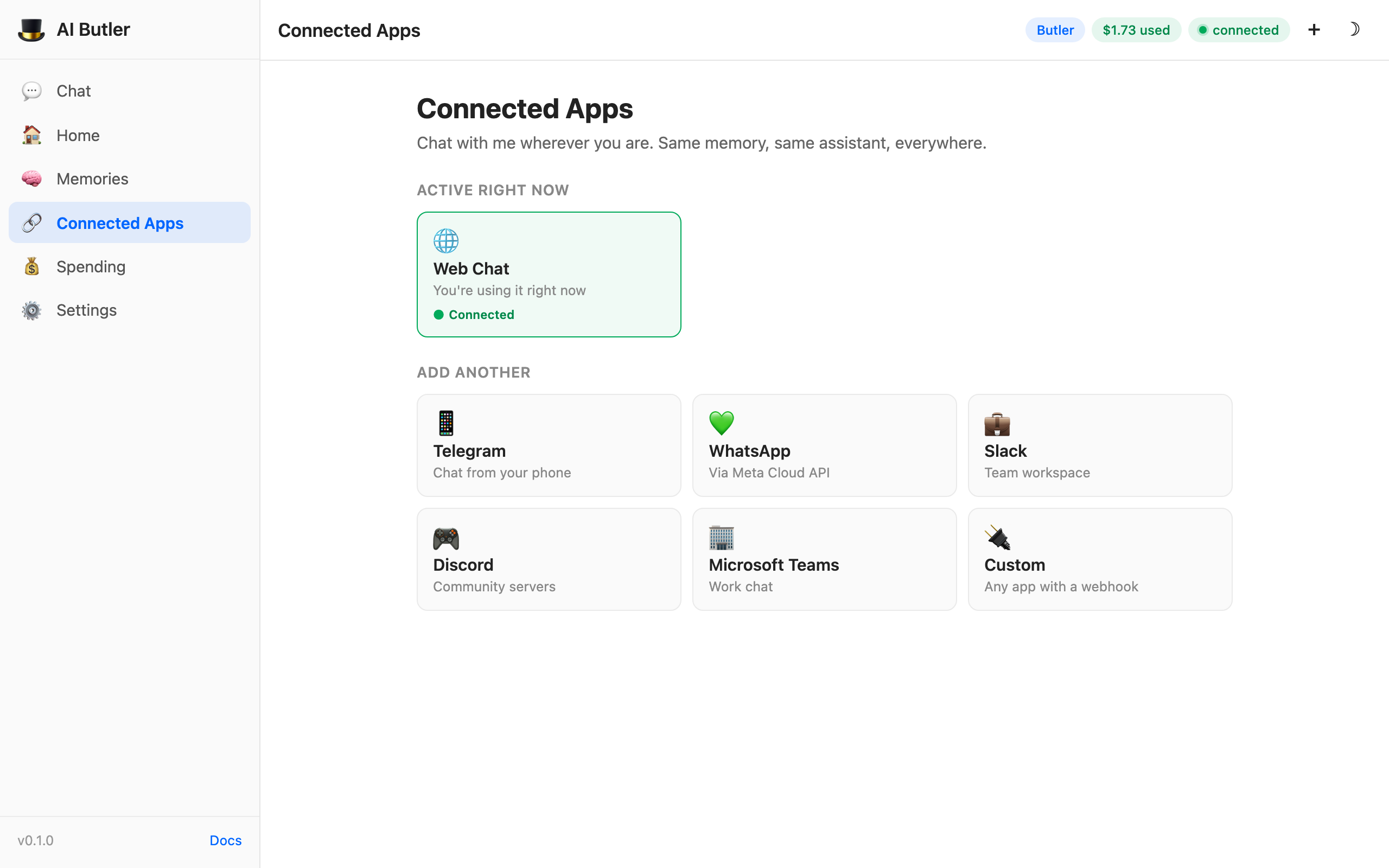
The “Active right now” section shows which channels are currently running. On a default install Web Chat is the only messaging channel active (the terminal REPL, the other ready channel, doesn’t appear here), so you’ll see one active card with a green “Connected” badge.
Below that, an “Add another” grid links to setup guides for the 10 beta channels: Telegram, WhatsApp, Slack, Discord, Teams, and a “Custom Webhook” card for any HTTP-capable platform. Each link opens the relevant docs page.
5. Missions — track long-running goals
Section titled “5. Missions — track long-running goals”The Missions panel gives a live view of the mission engine (aibutler mode mission) — long-running goals driven by supervisor, manager, and worker agents:
- Mini-stats — active, completed, and failed mission counts, plus total cost
- Recent missions — each mission with its current state, with a filter to include completed / failed / cancelled runs
- Refresh control — re-pulls from the
/api/dashboard/missions/*endpoints on demand
If you’re not running mission mode, the panel simply shows zero missions — it’s ready the moment you create your first mission via the mission.create tool. See Multi-Agent Swarm for how mission mode relates to the other agent modes.
6. Spending — live cost tracking
Section titled “6. Spending — live cost tracking”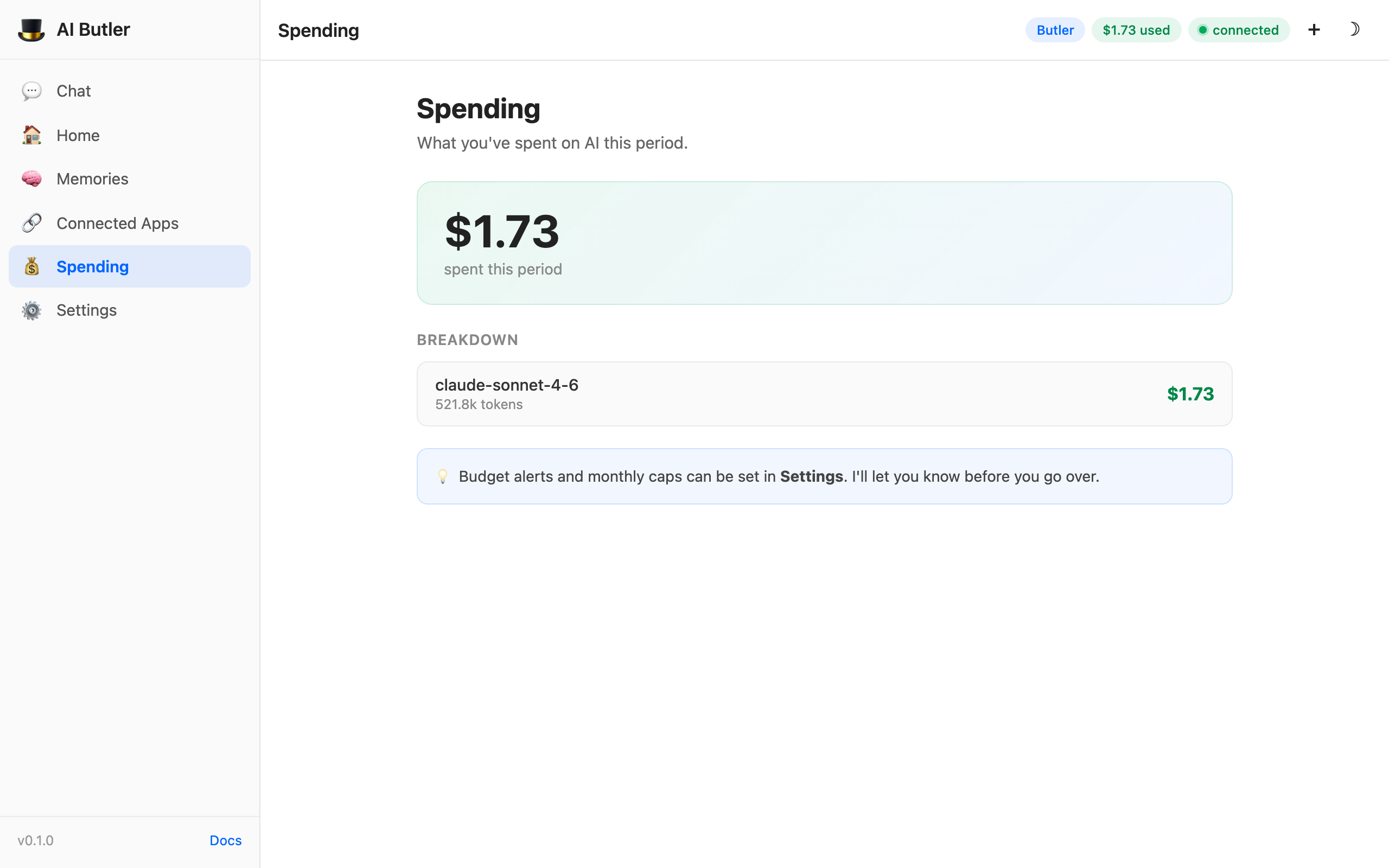
Live per-model cost breakdown that updates every time a model call completes:
- Big gradient card — total spent this period
- Per-model list — each model you’ve used, with total tokens and cost
- Budget hint — pointer to set monthly alerts in Settings
The update is debounced so it doesn’t jitter on every token, but it feels real-time on any practical model call.
7. Settings — theme, language, activity
Section titled “7. Settings — theme, language, activity”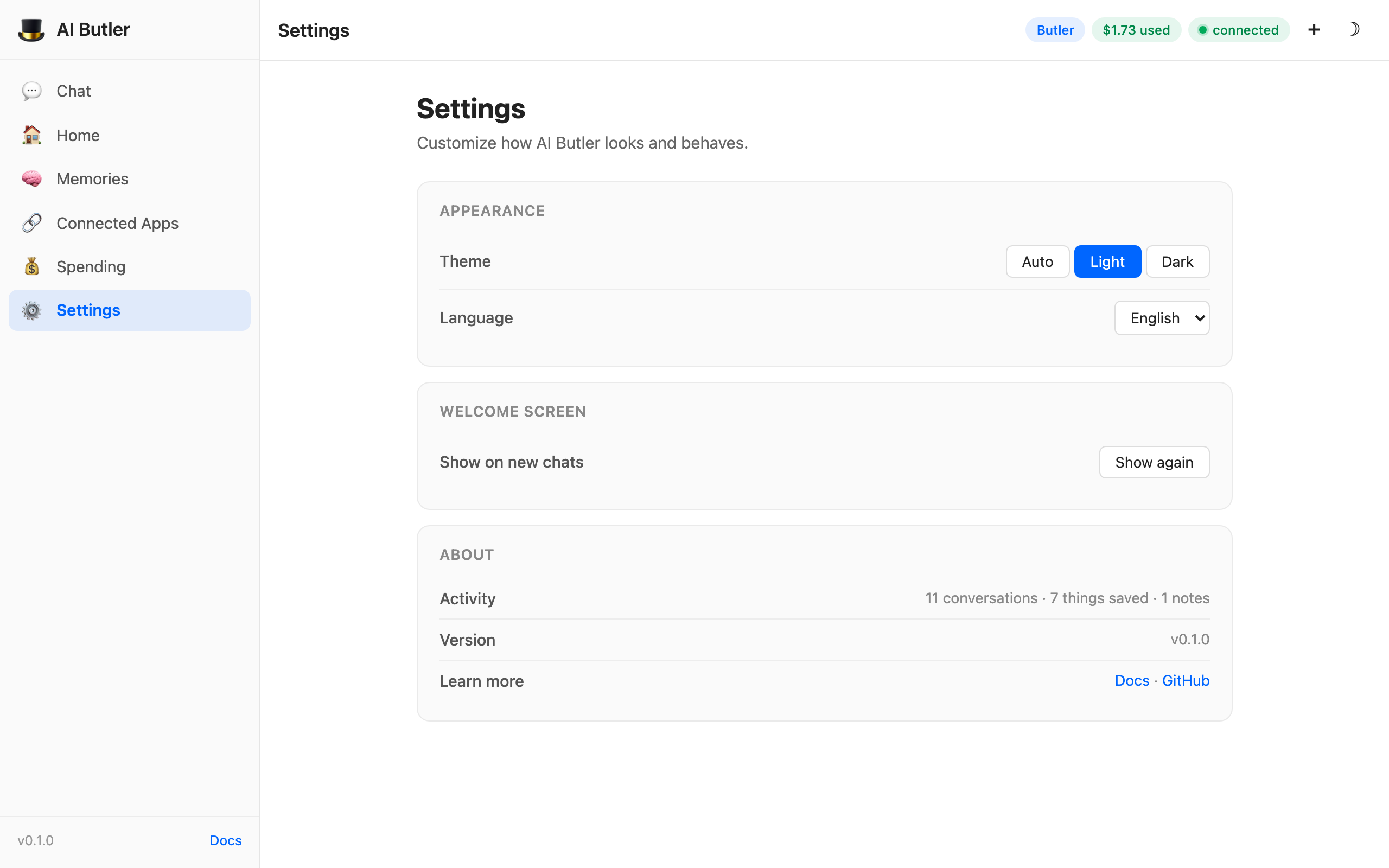
Three grouped sections:
- Appearance — Auto/Light/Dark theme picker (Auto honors your system preference) and language selector (EN / AR with RTL support; 12 more languages planned)
- Welcome screen — “Show again” button to reset the welcome-screen dismissal
- About — Activity summary with consumer-friendly language (“10 conversations · 6 things saved · 1 notes”), version number, and links to docs + GitHub
Everything is persisted in localStorage per-browser, so preferences survive reloads but don’t leak across devices.
Dark mode — first-class
Section titled “Dark mode — first-class”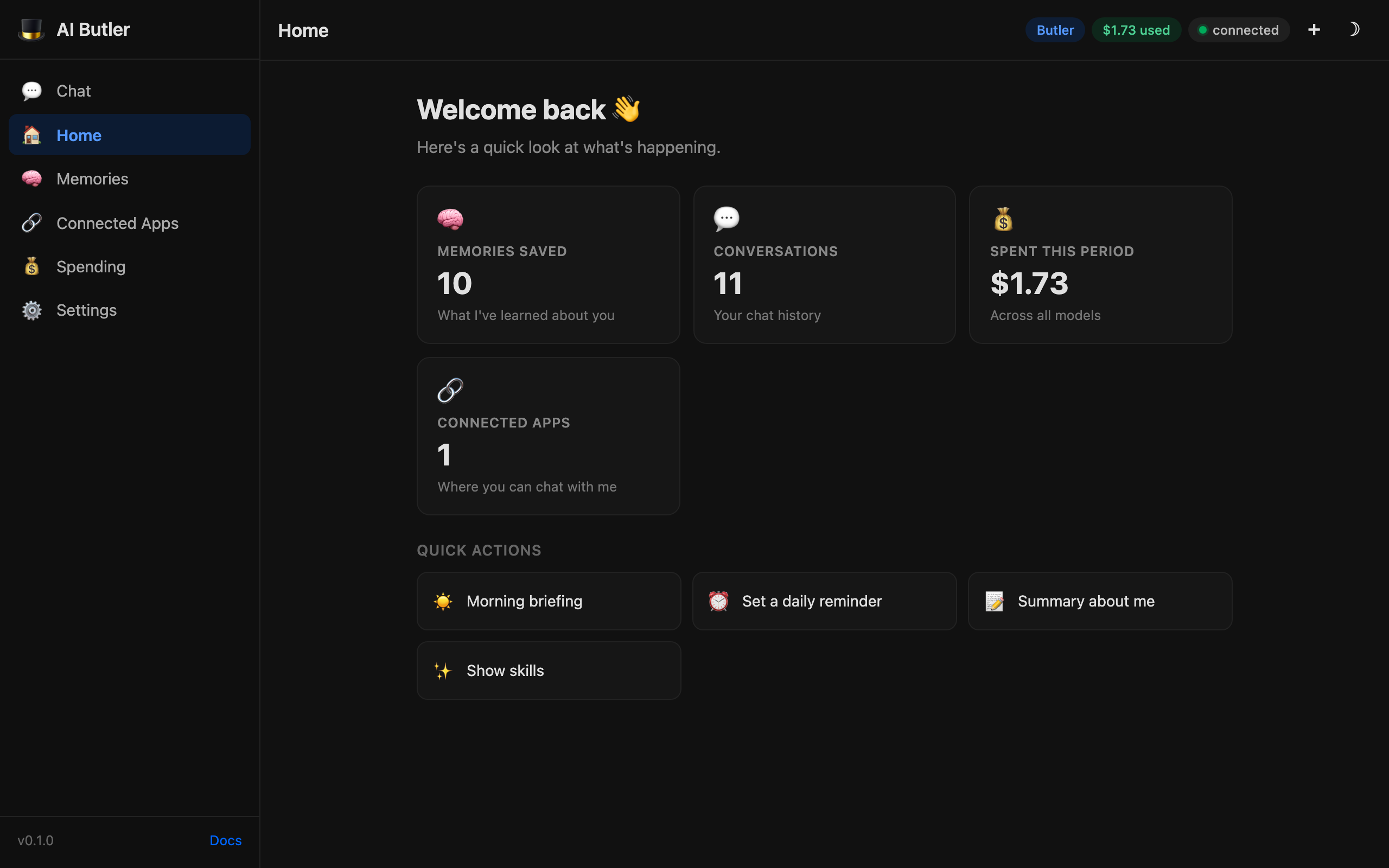
Every panel, tile, pill, chat bubble, and form element has a hand-tuned dark variant. Click the ☾ button top-right (or pick Dark in Settings) and the whole UI re-themes. System preference detection is on by default — your OS’s light/dark setting controls the initial choice, and your manual override persists in localStorage.
File upload
Section titled “File upload”Drag and drop any file into the chat input — or click the 📎 paperclip icon — and it’s uploaded before the next message sends.
Out-of-the-box support:
- Images (JPEG, PNG, WebP, GIF) — passed to vision-capable models
- Documents (PDF, DOCX, TXT, Markdown) — extracted and indexed into memory
- Audio (MP3, WAV, OGG, M4A) — transcribed via the configured STT provider
- Spreadsheets (CSV, XLSX) — parsed into structured data
- Archives (ZIP, TAR) — listed and optionally extractable
The max_upload_size_mb config controls the per-file limit (default 25 MB).
Voice input
Section titled “Voice input”The 🎤 microphone button (appears on the chat panel when available) uses the browser’s MediaRecorder API to capture audio, streams it to the server, and the server transcribes via the configured STT provider (Whisper by default). The transcribed text is processed as a normal text message, so memory capture and tool calls work the same way as text input.
STT provider setup: AI Services → Speech-to-text.
Mobile — responsive drawer
Section titled “Mobile — responsive drawer”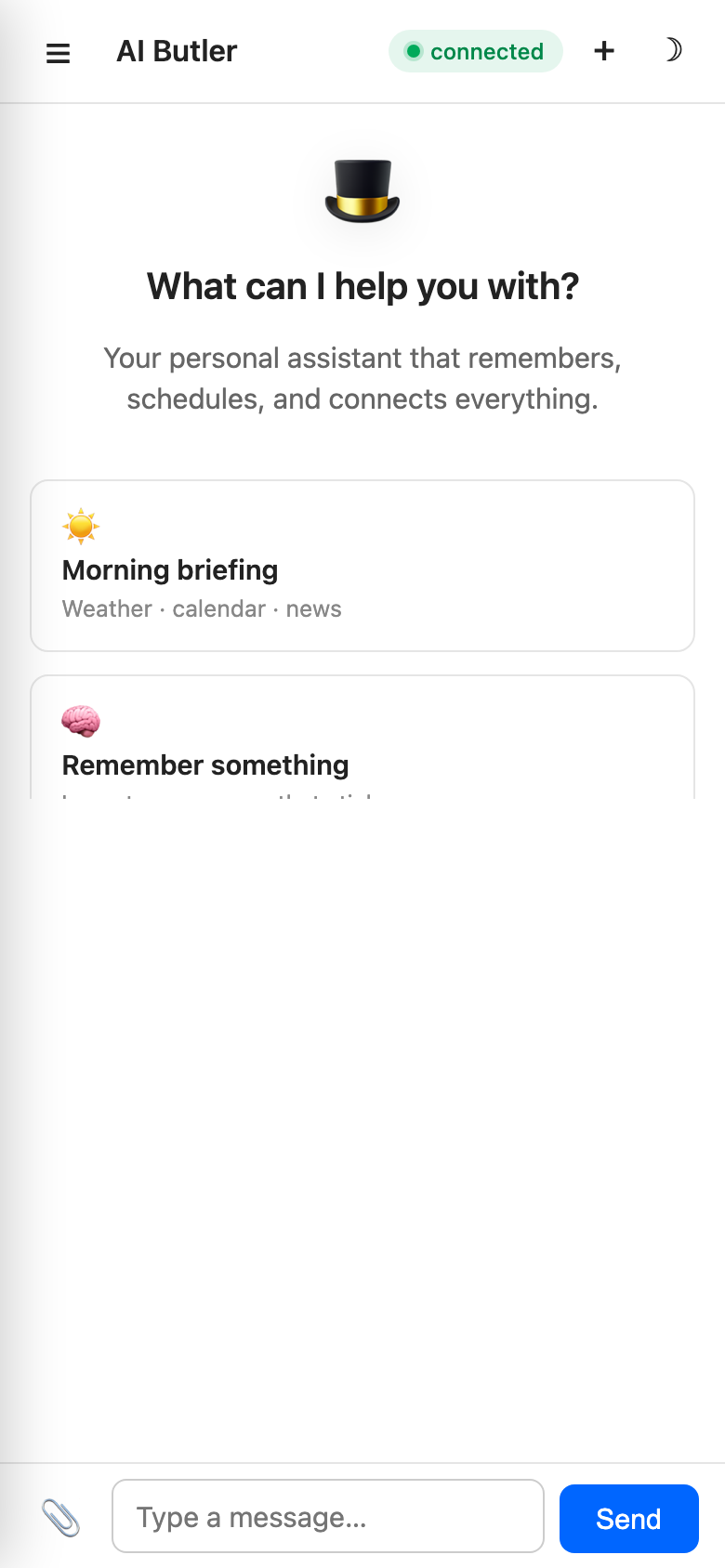
The entire UI is mobile-responsive. On narrow viewports (≤900px) the sidebar collapses into a hamburger drawer that slides in from the left with a backdrop overlay:
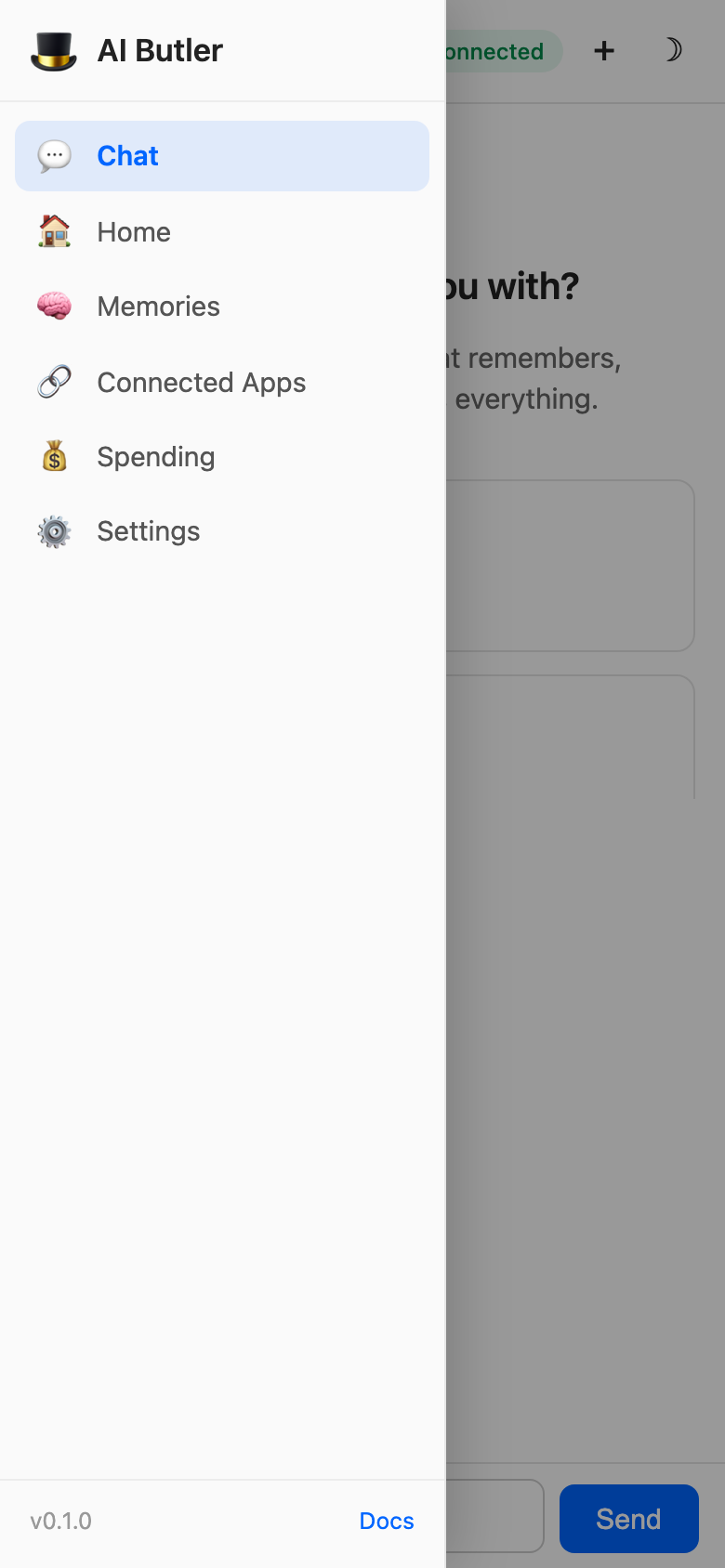
Tap any nav item or the backdrop to close the drawer. All 7 panels work on mobile with the same functionality as desktop — no feature parity loss.
Access it from your phone over LAN at http://your-machine-ip:3377 — mDNS discovery (aibutler.local) is in beta. The web chat installs as a PWA (beta): a web app manifest, a service worker with an offline shell, and home-screen icons ship out of the box — use your browser’s “Add to Home Screen” / “Install app”.
Streaming and reconnection
Section titled “Streaming and reconnection”Replies stream token-by-token via WebSocket — no polling, no full-page reloads, no “thinking…” spinners that hide progress. If the connection drops mid-stream:
- The connection pill flips to orange
connecting…and tries to reconnect every 2 seconds - If reconnection succeeds, the server’s response buffer is replayed so you don’t lose partial output
- If reconnection fails, a red
offlinepill appears and a polite message lands in the chat area
All of this is in internal/webchat/static/chat.js — ~730 lines of vanilla JS with no framework. Click “View Source” in your browser to read the entire client-side implementation.
Authentication
Section titled “Authentication”By default Web Chat is open on the configured bind address. For LAN use that’s fine — your LAN is the security boundary. For internet-exposed deployments, enable authentication:
configurations: auth: enabled: true session_timeout: 24h require_totp: falseSupported methods (all beta pending real-world validation):
- Password — bcrypt-hashed, per-user
- TOTP 2FA — RFC 6238, any authenticator app
- OIDC SSO — Auth0, Okta, Keycloak, Authelia, ZITADEL, Google Workspace
- FIDO2 / WebAuthn — hardware security keys (YubiKey, SoloKey, Apple Touch ID)
Full setup: Authentication.
Configuration
Section titled “Configuration”configurations: web: port: 3377 # default; change to any free port bind_address: localhost # default; 0.0.0.0 to expose on your LAN max_upload_size_mb: 25 # per-file limit in MBAccess
Section titled “Access”| Mode | How |
|---|---|
| Localhost only | Default bind_address: localhost + open http://localhost:3377 |
| LAN | bind_address: 0.0.0.0 + open http://<your-ip>:3377 from any device on the network |
| Internet | Put behind nginx / Caddy / Traefik with TLS — see VPS deploy guide |
| Pair from phone | LAN mode + open http://<host-ip>:3377/qr on the host and scan the QR code |
Troubleshooting
Section titled “Troubleshooting”Page loads but no replies. Check the browser console. WebSocket errors usually mean your reverse proxy isn’t upgrading HTTP connections. For nginx, make sure proxy_http_version 1.1, Upgrade, and Connection headers are set. For Caddy, a simple reverse_proxy localhost:3377 handles WebSocket automatically.
File uploads fail at larger sizes. Increase max_upload_size_mb in config.yaml and restart. If you’re behind a reverse proxy, also bump that proxy’s body size limit (client_max_body_size 30M; in nginx).
Slow first-token latency. Usually model-related, not web chat. Check which provider you configured in Choose Your AI. Ollama on low-end hardware and cloud models during peak hours are the most common causes.
Connection pill stuck on “connecting”? The WebSocket upgrade failed. Check aibutler run output for webchat: listening on — if the server isn’t listening, review configurations.web.port for conflicts.
Dark mode stuck on the wrong theme? Clear localStorage: localStorage.removeItem('theme') in the browser console and reload. Or switch it explicitly in Settings → Appearance.
Implementation notes (for the curious)
Section titled “Implementation notes (for the curious)”- Server: Go
net/httpfor HTTP, coder/websocket for WebSocket streaming - Static assets: HTML/CSS/JS embedded via
//go:embed static/*— no separate file server, everything ships inside the 18 MB binary - Frontend: hand-written vanilla JS + CSS with no framework, no build step, no npm. Total: ~400 lines of HTML, ~370 lines of CSS, ~730 lines of JS
- Streaming: token-by-token via WebSocket messages; the server buffers the stream so reconnection can replay
- Dashboard API: 30+ JSON endpoints under
/api/dashboard/*for panel data
All of this is in internal/webchat/. The total frontend is small enough to read in one sitting — we deliberately kept it framework-free so it’s easy to fork, modify, or replace.
Related
Section titled “Related”- Quick Start with screenshots — 5-minute walkthrough with 5 real conversation demos
- Memory & Knowledge — the backend that powers the Memories panel
- Authentication — password, TOTP, OIDC, WebAuthn setup
- VPS Deployment — how to expose web chat to the internet safely