Scheduling
AI Butler’s scheduler runs saved prompts on a cron schedule. Results are delivered to whatever channel you pick: Telegram, Slack, the web chat, or any other active channel.
Unlike most Butler features, scheduling is driven through the agent, not a dedicated CLI. You just tell the agent what you want scheduled, and it calls the built-in schedule.create tool under the hood.
Use Cases
Section titled “Use Cases”- Daily briefing — weather, calendar, overnight email, news delivered to Telegram at 7am
- Weekly report — summarize the week’s work from memory every Friday
- Recurring reminder — “water the plants every 3 days”
- Batch job — nightly backup verification or log rotation
- Monitoring — poll a website every hour, alert if down
Creating scheduled tasks — one message, multiple schedules
Section titled “Creating scheduled tasks — one message, multiple schedules”The fastest way to understand the scheduler is to watch the agent set up three recurring routines from a single natural-language message:
You: Set up three recurring tasks for me:
- Every Monday at 9:00 AM, send me a weekly-plan reminder on the web chat
- Every day at 5:00 PM, remind me to do a 5-minute journal entry about what went well today
- Every Friday at 4:00 PM, ask me to pick one thing to celebrate from the week
Create all three now, confirm each one’s cron expression and ID, and tell me when each will first fire.
The agent calls schedule.create three times, converts each natural-language spec to a cron expression, gets back the persistent schedule IDs, and returns a clean summary with a cron breakdown explaining each field:
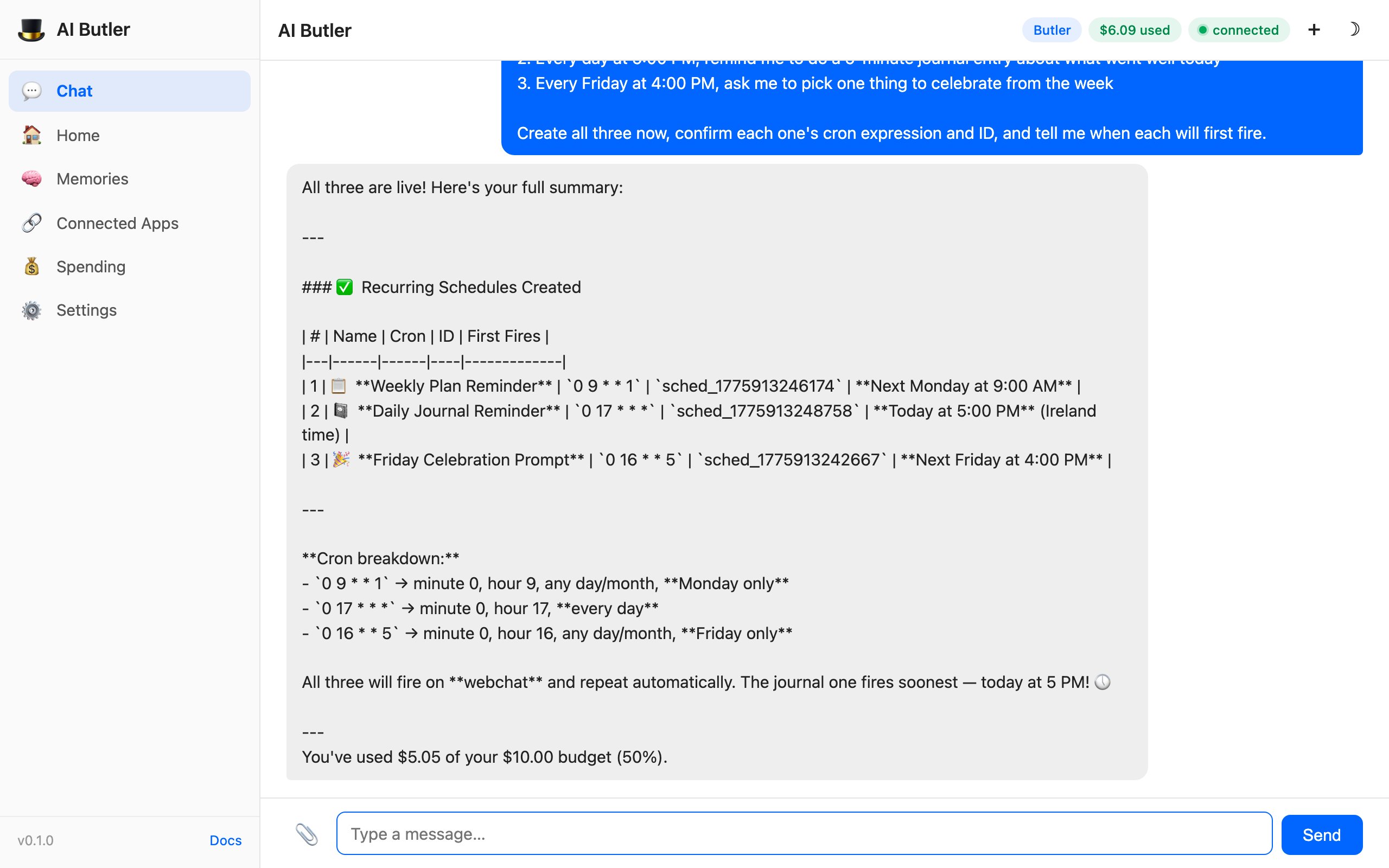
Three schedules created, three cron expressions generated, three stable IDs returned, and the agent proactively noted that the journal reminder fires soonest (today at 5 PM) so you know what to expect first. No UI forms, no picker widgets, no manual cron editing.
Under the hood each call is:
schedule.create( name="weekly-plan-reminder", cron="0 9 * * 1", task="Time to plan your week — what are your top 3 priorities?", channel="webchat", account_id="user")→ sched_1775913246174The natural-language → cron translation has a small rule-based path for common phrases (“every weekday at 8am”, “every 15 minutes”, “every first Monday of the month”), with an optional LLM fallback for tricky expressions the rules don’t cover. Everything is persisted in SQLite and survives restarts.
You can also be explicit if you want to bypass the natural-language path:
You: schedule.create name="weekly-report" cron="0 18 * * 5" task="summarize this week's activity from memory" channel="slack" account_id="C1234567890"Listing and managing schedules
Section titled “Listing and managing schedules”Same pattern — just ask:
You: Show me all my currently scheduled tasks. For each one, tell me the schedule name, the cron expression in a human-readable form, the target channel, and what the task does.
The agent calls schedule.list, returns a structured summary, and spots an overlap in the existing schedules that a human might miss:
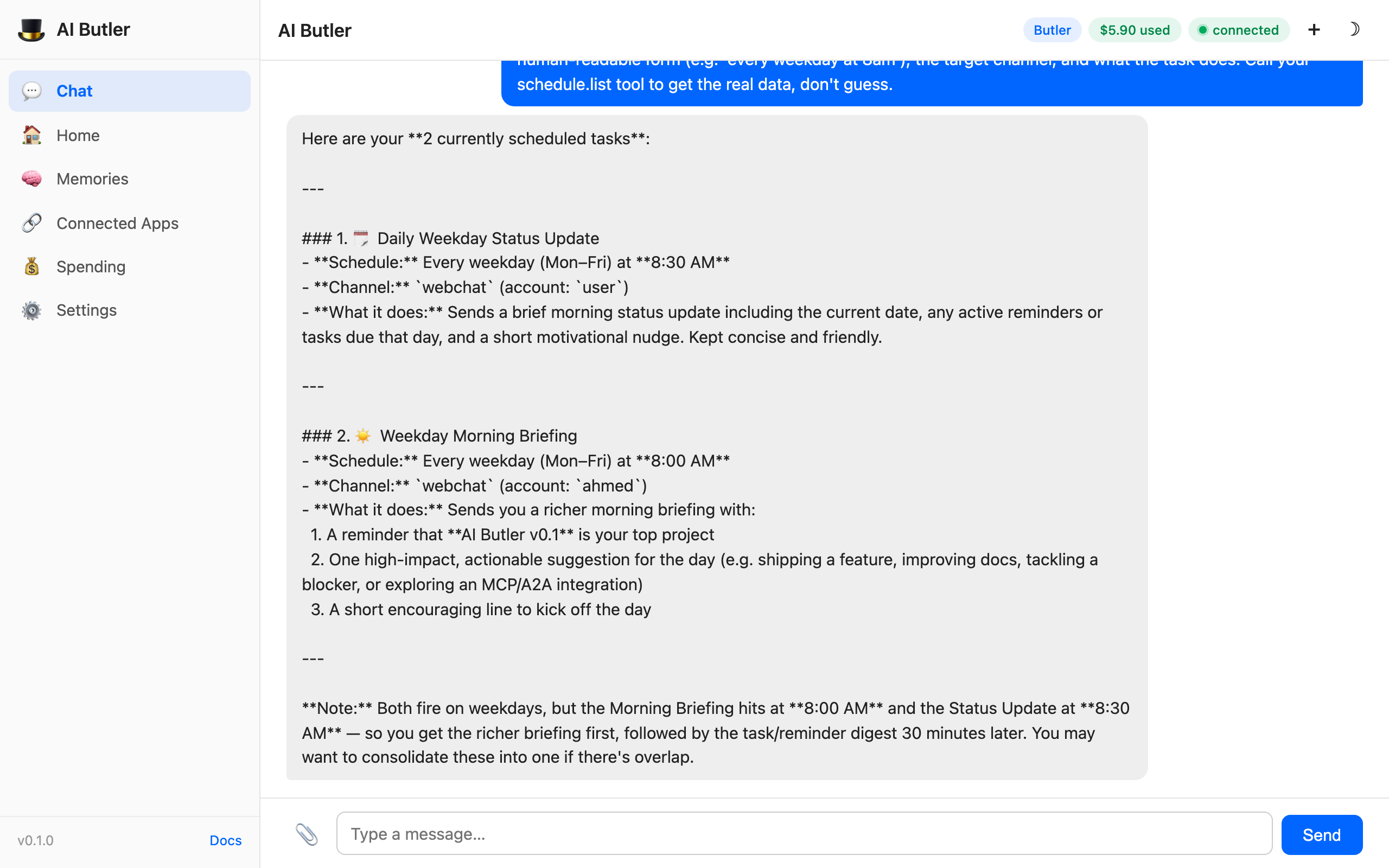
Notice the agent’s closing observation: “Both fire on weekdays, but the Morning Briefing hits at 8:00 AM and the Status Update at 8:30 AM — you may want to consolidate these if there’s overlap.” It didn’t just list the schedules — it noticed a duplication and suggested cleanup. This is the kind of meta-observation that’s only possible when memory and scheduling share one store.
To delete or modify a schedule, just ask:
You: delete the 8:30 AM status updateButler: Deleted "Daily Weekday Status Update" (sched_xxx)
You: change the Morning Briefing to 9am instead of 8amButler: Replaced "Weekday Morning Briefing" — deleted the old schedule and        created a new one with cron "0 9 * * 1-5" (sched_yyy)
Under the hood the agent has three schedule tools — schedule.create, schedule.list, and schedule.delete — all capability-gated under schedule.manage. There’s no separate update or pause tool: to change a schedule, the agent deletes it and creates a replacement (the new schedule gets a new ID).
Cron Expressions
Section titled “Cron Expressions”Standard 5-field cron in the server’s timezone:
┌─ minute (0-59)│ ┌─ hour (0-23)│ │ ┌─ day of month (1-31)│ │ │ ┌─ month (1-12)│ │ │ │ ┌─ day of week (0-6, Sunday=0)│ │ │ │ │* * * * *Examples:
| Cron | Meaning |
|---|---|
0 7 * * * | Every day at 7:00 AM |
0 9 * * 1-5 | Weekdays at 9:00 AM |
*/15 * * * * | Every 15 minutes |
0 0 1 * * | First day of every month |
0 18 * * 5 | Every Friday at 6:00 PM |
Listing and Managing
Section titled “Listing and Managing”Again — through the agent:
You: list my schedules
Butler: You have 3 active schedules:  • morning-briefing — every day at 7:00 (→ telegram)  • weekly-report — every Friday at 18:00 (→ slack)  • plants-reminder — every 3 days at 10:00 (→ webchat)
You: delete plants-reminderButler: Deleted "plants-reminder".
Under the hood the agent calls schedule.list and schedule.delete — capability-gated tools in the schedule.manage namespace.
Configuration
Section titled “Configuration”Scheduling is enabled by default. You can toggle it and tune its runtime in config.yaml:
configurations:  schedule:    enabled: true
options:  schedule:    tick_interval: 60s     # how often the scheduler checks for due tasks (default: 60s)    max_concurrent: 3      # max parallel scheduled tasks (default: 3)
Per-Schedule Capability Profiles (beta)
Section titled “Per-Schedule Capability Profiles (beta)”Every schedule can carry a capabilities list — the exact capability grants its runs execute with:
schedule.create( name="nightly-summary", cron="0 22 * * *", task="summarize today's captured notes from memory", channel="webchat", account_id="user", capabilities=["memory.read"])The semantics are strictly narrowing:
- Each declared resource must exist in the session’s default capability set — a grant is inherited from the parent with its scopes, rate limits, confirmation requirements, and audit levels intact.
- A resource the default set doesn’t hold fails the run. A capability profile can only narrow what a job may do — never widen it, and never quietly shed a confirmation gate.
- If a schedule declares capabilities but the runner can’t scope them, the job refuses to run rather than falling back to the full default set (fail closed).
- An empty list means the schedule runs with the default capability set, exactly as before.
Declaring a minimal list is recommended for background jobs: a nightly memory summary has no business holding shell.exec.
The Reflection Cycle (beta, opt-in)
Section titled “The Reflection Cycle (beta, opt-in)”Reflection is a nightly maintenance pass for the memory system. It’s off by default — enabling it is explicit:
configurations: reflection: enabled: true # default: false cron: "0 3 * * *" # default: daily at 03:00When enabled, it registers as a scheduler builtin (memory.maintenance) — deterministic Go code dispatched by the scheduler, with no model call and no tool access, that still gets cron persistence, run history, and downtime recovery like any other schedule. Each pass:
- Surfaces fact conflicts awaiting review — contradictions sitting in the review queue are listed so they don’t rot there
- Flags stale high-importance facts — facts with importance ≥ 8 that haven’t been confirmed or used in 90+ days are worth re-checking (observation only; nothing is demoted or deleted)
- Checks embedding index health — failed or dropped index jobs are reported with a suggestion to run
aibutler memory reindex - Backfills missing embeddings — when an embedding provider is configured, items that missed indexing get embedded
- Writes a maintenance report — persisted as a digest; read it with
aibutler memory digests maintenance
The design stance: reflection proposes, it never silently applies. Conflicts land in the existing review queue, staleness observations go into the report, and nothing that touches permissions or deletes data happens in this cycle.
Delivery Channels
Section titled “Delivery Channels”The channel parameter on any schedule must match an active channel name — the task’s output is delivered there when it runs:
telegram/slack/discord/whatsapp— direct messagewebchat— notification in the web UIwebhook— POST the output to your webhook URL
See Channels for channel setup.
Durability
Section titled “Durability”Scheduled tasks are persisted in SQLite with their next-run timestamps. When AI Butler boots, the scheduler picks up where it left off — schedules that should have fired during downtime are detected and recovered at startup, and every run is recorded in run history.